Appearance
Points
Reward customers for spending with you, and give them somewhere to spend the reward.
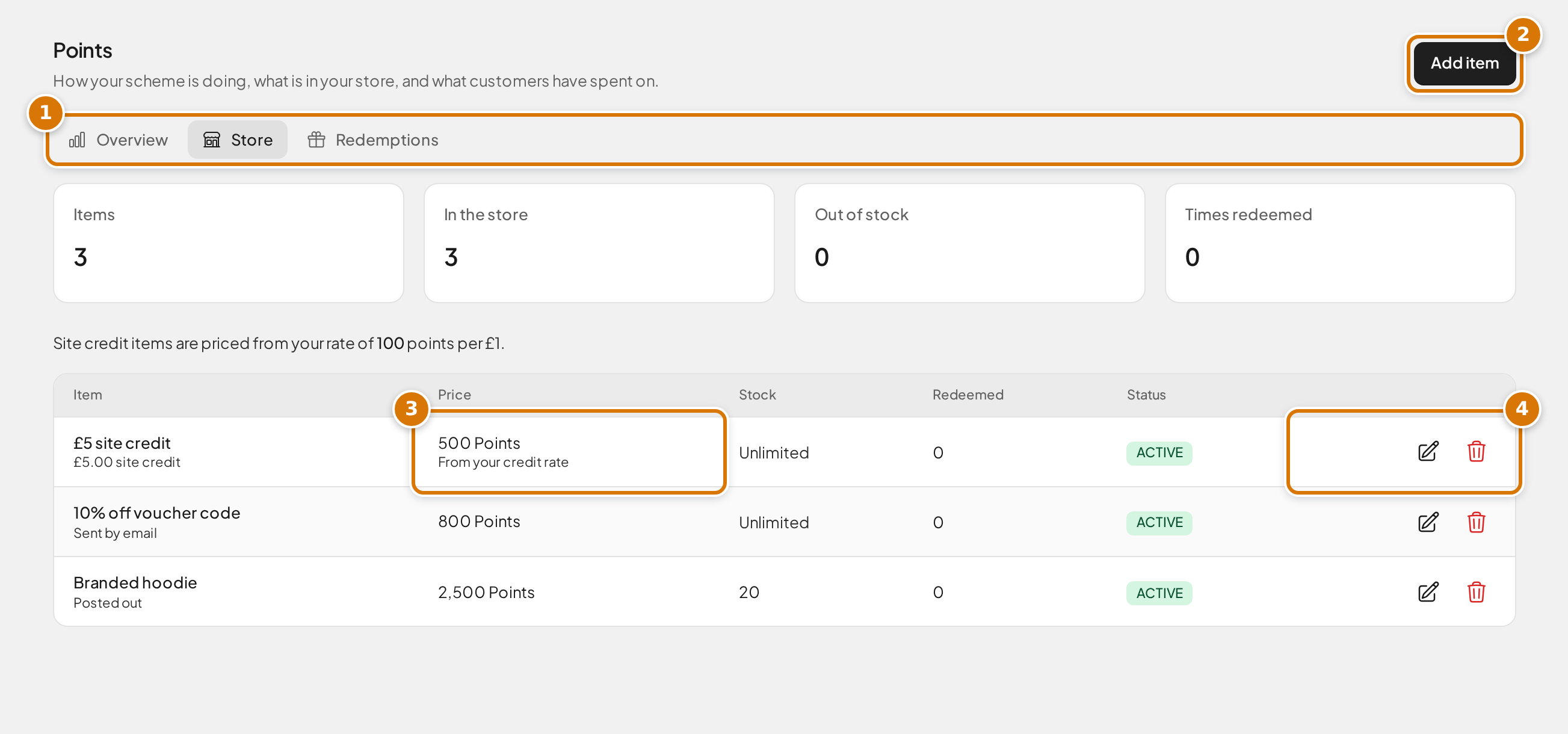
- Overview, Store and Redemptions tabs. Redemptions shows a count when some are waiting for you.
- Add item puts something new in the store. It only shows on the Store tab.
- Price is what the item costs in points. Site credit is priced from your credit rate.
- Edit or remove an item.
Route
Rewards → Points (/admin/points)
Overview
Customers earn points on every order. They spend them in a store you stock: site credit, competition tickets, physical items you post out, or digital items you email. You decide how fast points build up and what they're worth.
Everything is off until you switch it on, and turning it on doesn't back-date anything: customers start earning from their next order, not their last hundred.
Points vs site credit. They are not the same thing and it's worth being clear about the difference before you set your rates:
| Site credit | Points | |
|---|---|---|
| What it is | Money, in £ | A separate currency you invent |
| Where it comes from | Wins, refunds, your grants, top-ups | Earned automatically on orders |
| What it buys | Anything on the site, at checkout | Only what you put in the points store |
| Can it be withdrawn | No | No |
Points are the loyalty layer that sits above credit. A customer can spend points to get site credit, which is one of the things you can stock, but never the other way round.
Switch points on
- Go to Settings → Points.
- Turn on Enable points.
- Set Points earned per £1 spent. One point per pound is the easy starting point, but any number works. 10 per pound makes balances look bigger, which some sites prefer.
- Choose what points are earned on:
- Card payments only: customers earn on what they actually pay by card.
- Card payments and site credit: they also earn when they pay with credit.
- Save.
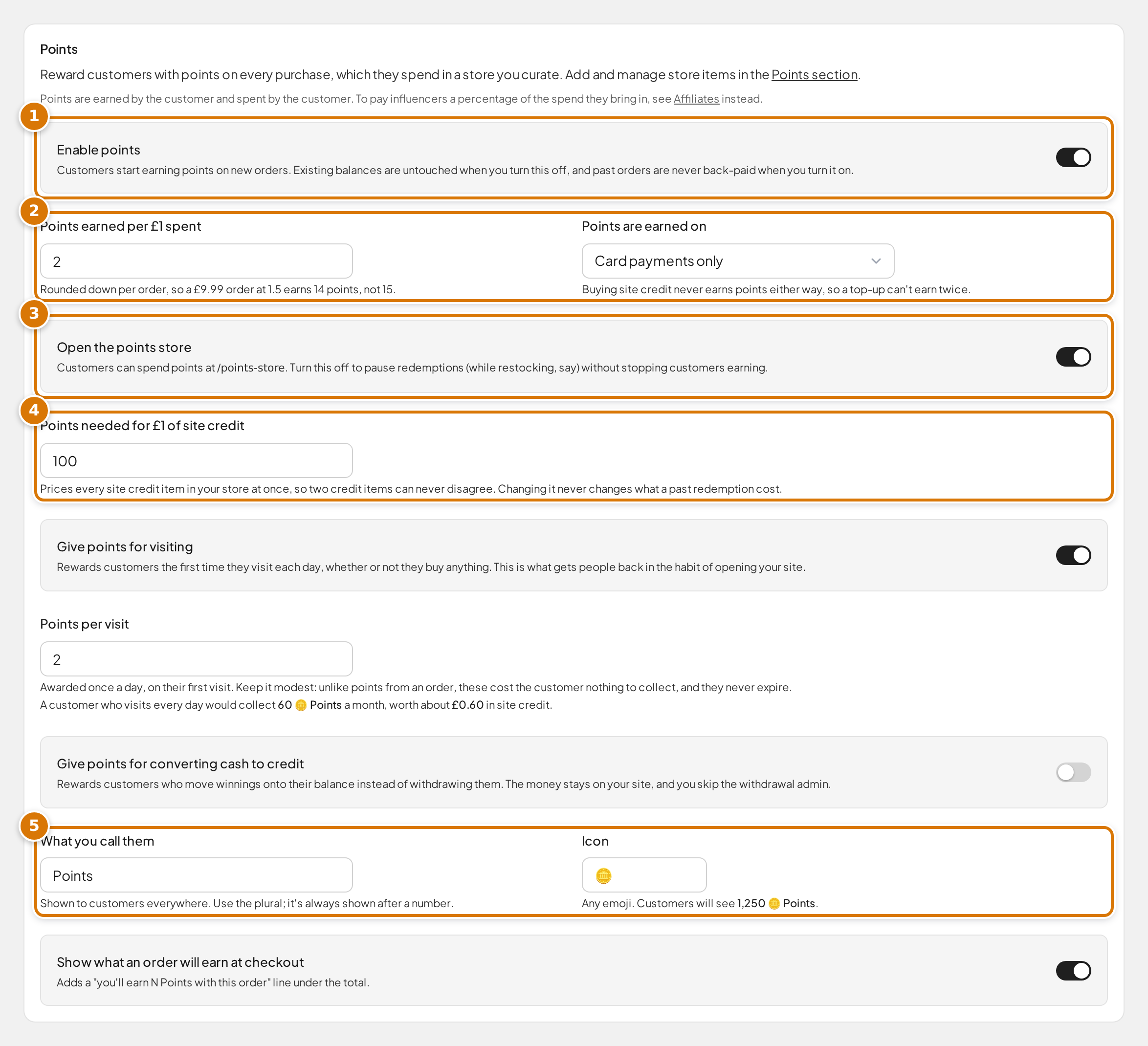
- Enable points switches the whole scheme on or off.
- How many points each £1 earns, and which payments count.
- Open the points store lets customers spend at
/points-store. - Points needed for £1 of site credit prices the site credit items in your store, unless you give one its own price.
- What customers see your points called, and their icon.
Customers now start earning. They can see their balance on their wallet page.
Which should I pick for "earned on"?
Card payments only is the safer default: you reward new money coming in.
Card payments and site credit is more generous, and it rewards customers for spending credit they've won. Read the warning under Don't let your rates feed each other before you choose it.
What never earns points
- Buying site credit. A top-up never earns, whichever option you pick. If it did, a customer would earn once for buying credit and again for spending it, collecting twice on the same pound.
- Free postal entries. No money changed hands.
- Free tickets won as prizes. Same reason.
Points are always rounded down, per order. At 1.5 points per pound, a £9.99 order earns 14 points, not 15, so nobody can build a balance faster by splitting a basket.
Reward people for turning up
Points normally only arrive when someone buys something, which means the customers who already spend get rewarded and everyone else gets nothing. Give points for visiting changes that: a customer collects points the first time they open your site each day, whether or not they buy anything.
This is the setting that builds a daily habit. It's also the one that costs you money for nothing in return, so set the number low and read the figure underneath it.
Under Settings → Points, turn on Give points for visiting and set Points per visit. Once your store is open, the page tells you what a daily visitor would collect in a month and roughly what that's worth in site credit. Check that number is one you're happy to hand out for free.
A few things worth knowing:
- It's a visit, not a login. Customers stay signed in for weeks, so waiting for them to log in again would reward almost nobody. The points land on their first visit of the day.
- Once a day, whatever they do. Opening ten pages earns one lot of points, not ten.
- The day rolls over at midnight, UK time, for everyone.
- Customers on a break don't collect. Anyone who has self-excluded, or whose account is locked, earns nothing while that lasts. They start collecting again from their first visit after it ends, and they don't lose anything for the days in between.
- Set it to 0 and the award is skipped entirely, same as turning it off.
Reward people for keeping winnings on your site
When a customer wins cash, they can withdraw it or convert it to site credit (if you've switched conversion on — see Checkout settings). Withdrawals cost you bank fees and admin; conversions keep the money on your site. Give points for converting cash to credit adds a loyalty reason to choose the conversion, on top of any conversion bonus you already offer.
Under Settings → Points, turn on Give points for converting cash to credit and set Points per £1 converted. Converting £50 at 1 point per £1 earns 50 points, always rounded down, and always on the amount converted — the conversion bonus doesn't earn points on top.
A few things worth knowing:
- These points reward money you've already paid out as prizes, not money coming in. Keep the rate at or below what a £1 card spend earns — the page reminds you of this too.
- It needs cash conversion switched on. If conversion is off under Settings → Checkout, the toggle sits idle and the page tells you where to go.
- It only works when points are earned on card spend only. If your scheme earns points on card and wallet spend, converted credit already earns points when it's spent — giving points at conversion too would pay the same pound twice, so the award is skipped and the page warns you.
- Customers on a break don't collect, same as visit points: self-excluded and locked accounts earn nothing.
- The points stay if the win is later undone. There's no clawback, so treat the rate as money out the door.
- Set it to 0 and the award is skipped entirely, same as turning it off.
Customers see what they'll earn in the conversion preview before they confirm.
Name them what you like
Under Settings → Points:
- What you call them: "Points", "Gems", "Coins", whatever suits your brand. Use the plural; it's always shown after a number.
- Icon: any emoji.
Customers see the two together after the figure, like 1,250 🪙 Points. Because it's always shown that way, you never have to worry about "1 Point" versus "2 Points".
Stock the store
Nothing is spendable until there's something to spend it on.
- Go to Settings → Points and turn on Open the points store.
- Set Points needed for £1 of site credit. See Pricing site credit below.
- Go to Rewards → Points, open the Store tab and click Add item.
- Choose what it is:
| Type | What the customer gets | When they get it |
|---|---|---|
| Site credit | £ added to their wallet | Straight away |
| Competition tickets | Tickets in a competition you choose | Straight away |
| Physical item | Something you post out | When you post it |
| Digital item | A code, a download, a link | When you email it |
- Fill in the name, an optional description and image, and the price. Most items ask for Points to redeem. A site credit item asks for Site credit given (£) instead and is priced from your credit rate, unless you tick Charge a different price for this one.
- Set Stock if you only have so many, or leave it blank for unlimited.
- Click Add item.
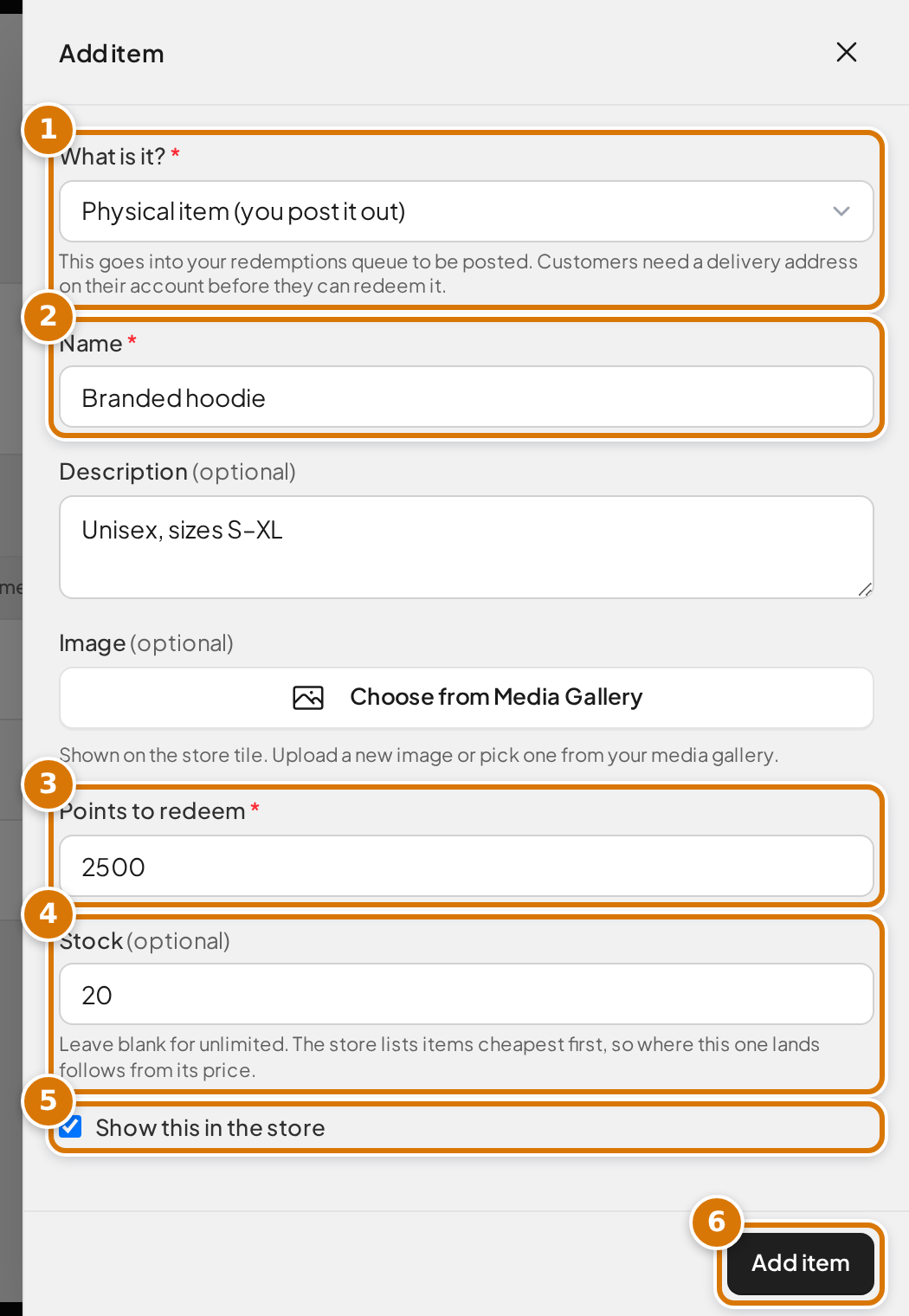
- What is it? sets the type, and the form changes to match.
- Name is what customers see in the store.
- Points to redeem is the price.
- Stock is optional. Leave it blank for unlimited.
- Untick Show this in the store to hide an item without deleting it.
- Add item saves it.
The store lists items cheapest first, so a customer scrolls from what they can afford today towards what they're saving for. There's nothing to arrange by hand; reprice an item and it moves itself. Your Points list in the admin is sorted the same way, so what you see is the order customers see.
The store lives at /points-store on your site. Anyone can browse it, signed in or not; it's a shop window as much as a checkout. They only need an account when they hit Redeem.
TIP
A link to the store appears in your site footer as soon as you open it, named after whatever you call your points. To put it in your main menu too, add it under Site → Menus: add an item, leave the Type as Page, and the store is in the page picker alongside your own pages, under that same name. It only appears there while both Enable points and Open the points store are switched on. The menu item keeps the label it was created with, so rename your points after adding one and you'll want to edit the label to match.
Pricing site credit
Site credit items are the one type you don't price by hand. You set the credit amount (say £5) and the price comes from your Points needed for £1 of site credit rate.
At 100 points per £1, a £5 credit item costs 500 points. Change the rate to 200 and every credit item in your store reprices instantly. No going through them one by one, and two credit items can never end up disagreeing with each other.
If you want one bundle to be a deliberate bargain, tick Charge a different price for this one and set the points yourself. The store shows how it compares to your rate.
Changing the rate never changes what a past redemption cost. Someone who paid 500 points for £5 last week still shows as having paid 500.
A note on competition tickets
If the competition sells out, or the customer is already at your per-customer ticket limit, the redemption is refused and they keep their points. They are never given part of what they paid for.
Tickets bought with points are ordinary tickets. They go into the draw, and they are checked against the competition's instant wins exactly like tickets someone paid for, so a customer can win an instant prize on a ticket they spent points on. They get the usual order confirmation email listing their ticket numbers, and the order appears in their history marked as a points redemption.
One thing to know before you cancel one. Cancelling that order takes the tickets back, frees any instant win they landed so the number can be won again, and takes back any credit or cash that win had already paid into the customer's wallet (it shows in their history as Instant Win Reversed or Cash Prize Reversed, and can push the balance below zero). It does not return the points. Treat cancelling as a correction you are sure about rather than a refund.
Digital items
Not everything worth giving away is postable. A discount code for your shop, a downloadable guide, a link to something members-only: pick Digital item and it works like a physical item with the posting replaced by an email from you.
The difference that matters: a physical item can't be redeemed at all unless the customer has a full delivery address saved, and plenty of customers have never had a reason to add one. An email item asks nothing of them. They're told you'll send it to the address on their account, and it's that address you'll see in the queue.
Nothing is stored against the item and nothing is sent automatically. You send the code or the link yourself, from wherever you'd normally send it, then mark it as sent.
Fulfil a redemption
Site credit and competition tickets are handed over the moment a customer redeems. Physical and digital items need you.
- Go to Rewards → Points and open the Redemptions tab. It opens on Waiting, which is the queue that needs you.
- Click the eye on a row to open it.
- Post it to shows the customer's address as it was when they redeemed. Use this one. If they've changed their address since, this is still the one they were told you'd post to. For an email item you'll see Email it to instead, with the address on their account.
- Optionally add a note (a tracking number, say).
- Click Mark as in progress while you're packing or preparing it, then Mark as sent once it's gone.
A badge on Rewards in the sidebar, and beside Points in its submenu, shows how many are waiting. The Rewards badge also includes any referrals held for review, so the Points figure is the one to go by.
Cancel a redemption
If you can't fulfil something, open it and click Cancel and refund. The customer gets their points straight back and the item goes back in stock.
You can only do this before you mark it as sent. Once it's sent, it's sent, and refunding the points then would mean the customer got both.
A hand-made adjustment is the other way a customer can be emailed about their points — see Correct a balance by hand.
Customers who redeem anything that lands in your queue get a confirmation email: for a physical item it shows the address you'll post to, and for an email item it shows the address you'll send to, so they can tell you if it's the wrong one. Instant redemptions mostly don't get an email; the customer sees the result on screen and it appears in their wallet or ticket history immediately. Competition tickets are the exception — those send the standard order confirmation, because the ticket numbers are worth having in writing.
Show what an order will earn
Under Settings → Points, turn on Show what an order will earn at checkout. Customers then see a line under their total: "You'll earn 25 🪙 Points with this order".
It's a nudge, not a promise about a specific number. The figure is confirmed when the order completes.
Don't let your rates feed each other
If you earn points on site credit and your earn rate is at least as high as your credit rate, you have a loop that never runs out: every £1 of credit a customer redeems earns back at least £1's worth of points.
The settings page warns you when your two rates are in that position. It's a warning rather than a block, because you might have a reason, but check it before you save.
The safe way to be generous is to raise your earn rate while keeping the credit rate well above it. At 1 point per £1 earned and 100 points per £1 of credit, a customer needs £100 of spending to earn £1 of credit. That's a 1% reward, and it can't run away.
Check on a customer's points
When someone asks why they didn't get the points they expected, go to Customers.
There's a Points column next to Credit and Cash. Click the sort arrow on it to rank everyone by balance, or search for the customer you're after and click their balance to open their history.
The history lists every movement on that account, newest first: what they earned from each order, anything they got for visiting, what they've spent in your store, and any correction that's been made by hand. Each line shows the balance as it stood afterwards, so you can follow it down and see exactly where a number came from. Order lines link straight through to the order.
Correct a balance by hand
In that same panel, click Adjust balance.
Enter a positive number to add points, or a negative one to take them away, and say why. The panel shows you what the balance will become before you apply it, and it won't let you take an account below zero.
When you are adding points, you can also tick Email the customer about this. It is unticked by default. Ticking it sends them an email with your reason, how many points you added, and their new balance — using your own name for points, so a site calling them Gems emails about Gems. The box only appears when you are adding, and no email is sent if your points scheme is switched off, or if the customer has self-excluded or closed their account. The confirmation afterwards tells you whether the email went; if it could not be delivered the points are still theirs.
Adjustments are recorded against your name and show in the customer's history as an adjustment, so there's always a trail. Archived customers can be read but not adjusted. Use it for genuine corrections rather than as a way to hand out rewards: points given this way don't come from a rate, so nothing else on the site accounts for them.
You need the Administrator or Shop Manager role to make an adjustment. Anyone who can see the Points column can read the history without changing it.
See how your scheme is doing
The Overview tab on Points is the scheme as a whole rather than any one customer.
- Outstanding is every point your customers are currently holding, with a rough value in site credit underneath. Treat that money figure as a guide, not an account balance: it's worked out at the rate you're charging today, and points also leave as tickets and posted items that never touch that rate.
- Given out and Spent cover the period you choose, 7 days up to a year. Given out is split between orders and daily visits, so you can see which is doing the work. Adjustments are reported separately underneath, because they are neither earning nor spending. That line covers both corrections you have made by hand and points handed back by cancelled redemptions; a customer's own history tells the two apart.
- Never spent is what's sitting with customers who have never redeemed anything. A large number here means people are collecting but your store isn't tempting them.
- Biggest balances lists your ten largest holders. Click any of them to open that customer.
Archived customers are left out of all of these figures. Their balances still exist, but the account can no longer be used, so counting them would overstate what you owe.
Your current rates are shown alongside, with a link to change them.
What to watch for. Because refunds don't take points back (below), "given out" running consistently ahead of "spent" over a long stretch is the signal that the gap is growing. It's normal for a healthy scheme to give out more than gets spent; it's the trend over months, not any single week, that's worth acting on.
Refunds
Refunding an order doesn't take points back. A customer who buys, earns and then gets refunded keeps what they earned.
This is a deliberate trade for simplicity, and the same way referral rewards already work. It's only worth money to someone if your rates are generous, which is the other reason to keep the credit rate well above the earn rate.
Who can do what
| Role | Store items | Redemptions queue | Overview and balances | Adjust a balance | Rates and naming |
|---|---|---|---|---|---|
| Administrator | View and edit | View and update | Yes | Yes | Yes |
| Shop Manager | View and edit | View and update | Yes | Yes | Yes |
| Marketing | No access | No access | No | No | No |
Shop Managers run the redemptions queue for the same reason they run the winners queue: posting things out is the job.
Marketing has no access at all: the redemptions queue and points balances show what individual customers have spent, and Marketing is deliberately kept away from customer financials. That includes the Points column on Customers, which doesn't appear for them, and the points figure in a customer export, which they can't tick.
Common questions
Can customers turn points into cash? No. Points buy what's in your store, and nothing in it can be withdrawn, site credit included.
What happens to points if I turn the feature off? Balances are kept exactly as they are. Customers stop earning and the store disappears. Turn it back on and everything is where they left it.
Do points expire? Not at the moment. Worth keeping in mind if you turn on points for visiting: those balances build up on their own and nothing ever drains them except your store.
Does a customer have to do anything to claim their visit points? No. They land automatically on their first visit of the day. There's no button to press and nothing to remember.
Can I close the store but keep customers earning? Yes. Turn off Open the points store and leave Enable points on. Useful while you're restocking.
Can I give a customer points by hand? Yes. Open Customers, click the customer's Points balance, then Adjust balance. It's recorded against your name and shows in their history.
Can I get points balances out into a spreadsheet? Yes. The export on Customers has a Points Balance field under Financial, alongside Wallet Balance.
Related
- Wallets & Withdrawals: site credit and cash balances, and how customers buy credit directly.
- Referrals: one-off rewards between two customers.
- Influencer Affiliates: ongoing commission paid to influencers on the players they bring in.